
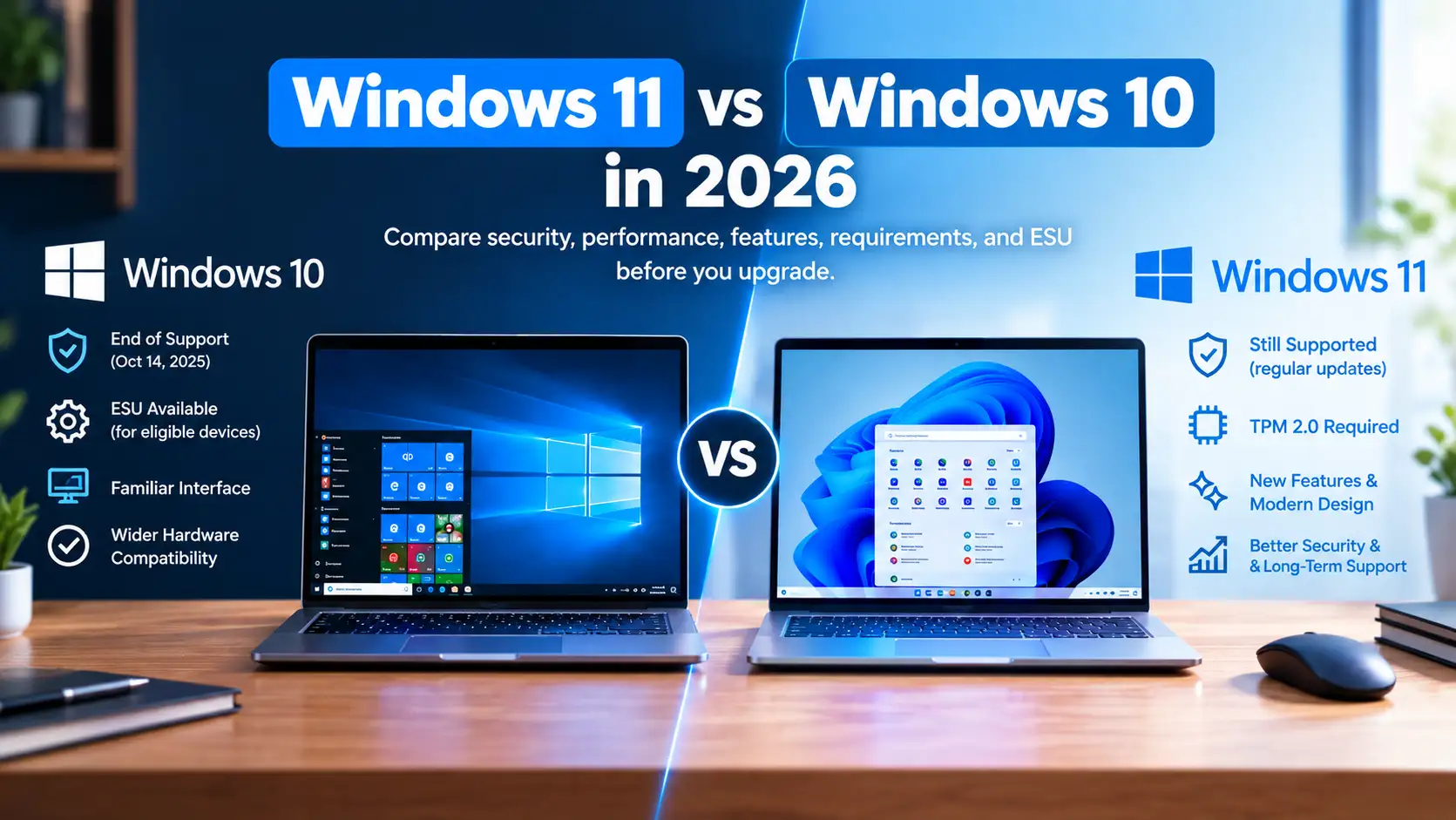
Windows 11 vs Windows 10 in 2026: Is It Finally Time to Upgrade?
If you’re comparing Windows 11 vs Windows 10 in 2026, the biggest difference is no longer just design or performance. Windows 10 reached its official end of support on October 14, 2025, while Windows 11 remains Microsoft’s current Windows desktop platform.
Windows 10 PCs can still run, but they no longer receive Microsoft’s normal security updates, feature updates, or technical support. If your PC meets the Windows 11 requirements, upgrading is the straightforward path; if it doesn’t, Microsoft’s Windows 10 Extended Security Updates (ESU) program can provide a temporary security bridge for eligible devices.
Quick Answer: Windows 11 vs Windows 10 in 2026
Windows 11 is the supported choice for compatible PCs in 2026. Windows 10 still works after its end-of-support date, but continuing to use it without ESU means missing Microsoft’s regular security protection and support.
Before upgrading, however, check your hardware. Windows 11 requires a compatible 64-bit processor, at least 4 GB of RAM, 64 GB of storage, UEFI with Secure Boot capability, and TPM 2.0.
Windows 11 vs Windows 10: What's the Difference?
At a basic level, Windows 10 and Windows 11 are both desktop operating systems built around the same familiar Windows ecosystem. You can run traditional desktop applications, browse the web, manage files, play games, and connect peripherals on both.
The major difference in 2026 is support status.
Windows 10 has moved beyond its standard support lifecycle. Windows 11 continues to receive updates and represents Microsoft’s current direction for Windows PCs.
Windows 11 also introduces a redesigned interface and newer security requirements. Features such as the centered Start menu, updated Settings experience, redesigned File Explorer, improved window management, and newer Windows security capabilities make the two versions feel different even though the underlying Windows experience remains familiar.
Is Windows 10 Still Supported in 2026?
No. Windows 10 reached end of support on October 14, 2025.
Microsoft states that Windows 10 no longer receives normal security updates, feature updates, or technical assistance after that date. The final supported Windows 10 versions received their final regular monthly security update in October 2025.
That does not mean your Windows 10 PC suddenly stops working.
You can still start Windows, install and use applications, browse the internet, access your files, and perform everyday tasks. The important difference is that the operating system is no longer receiving Microsoft’s standard ongoing protection.
For a connected computer, that distinction matters.
What Is Windows 10 ESU?
Windows 10 Extended Security Updates (ESU) is Microsoft’s program for users who need additional time before moving away from Windows 10.
ESU provides eligible Windows 10 devices with critical and important security updates after the normal support period. It is designed as a transition option rather than a replacement for the normal Windows support lifecycle.
ESU does not turn Windows 10 into a fully supported modern operating system. It does not provide new features, general technical support, or ordinary non-security improvements.
For eligible consumer devices, Microsoft currently documents ESU availability for Windows 10 version 22H2 editions such as Home, Professional, Pro Education, and Workstations.
So, if your older PC cannot run Windows 11, ESU can give you additional security coverage while you plan your next step
Windows 11 System Requirements Explained
One reason the Windows 11 vs Windows 10 debate continues is hardware compatibility.
Windows 11 has specific minimum requirements that exclude some older computers.
| Requirement | Windows 11 minimum |
|---|---|
| Processor | 1 GHz or faster, 2+ cores, compatible 64-bit CPU |
| RAM | 4 GB |
| Storage | 64 GB or larger |
| System firmware | UEFI, Secure Boot capable |
| TPM | TPM 2.0 |
| Graphics | DirectX 12 or later with WDDM 2.0 |
| Display | 720p or higher, larger than 9 inches |
These are Microsoft’s published minimum requirements, although meeting the minimum does not necessarily mean every PC will deliver the same real-world experience.
Why Does Windows 11 Require TPM 2.0?
TPM 2.0, or Trusted Platform Module 2.0, is a hardware-based security component used for functions such as protecting encryption keys and supporting security technologies including Windows Hello and BitLocker.
Microsoft lists TPM 2.0 as a Windows 11 requirement because it provides a foundation for stronger hardware-backed security.
Some computers already have compatible TPM hardware but have it disabled in firmware. Depending on the PC, it may appear under names such as Intel PTT or AMD fTPM.
If your PC says TPM is missing, check whether it is actually disabled before assuming your hardware is incompatible.
Windows 10 vs Windows 11 Performance
Performance is one of the most common reasons people search for Windows 10 vs Windows 11 performance comparisons.
There isn’t one universal winner because performance depends on the processor, RAM, storage, drivers, applications, and workload.
Everyday Performance
On a reasonably modern compatible computer, Windows 11 can handle everyday activities such as web browsing, Office applications, streaming, file management, and video calls comfortably.
However, upgrading an older PC does not automatically make it faster.
If your computer has limited RAM, a slow hard drive, or an older processor, hardware upgrades can have a larger effect on responsiveness than changing Windows versions.
Multitasking
Windows 11 places more emphasis on modern window management.
Features such as Snap layouts make it easier to organize multiple applications across the desktop. This can be particularly useful if you regularly work with a browser, documents, messaging apps, and other windows simultaneously.
Windows 10 also supports window snapping, so the difference is more about Microsoft’s newer interface and workflow improvements than a completely new multitasking concept.
Gaming
For gaming, don’t assume that Windows 11 automatically produces dramatically higher frame rates.
Actual results depend on the game, graphics card, processor, drivers, storage, and configuration.
The more important long-term consideration is compatibility with newer Windows features, drivers, security technologies, and Microsoft’s supported software environment.
If gaming is your priority, compare performance using your specific hardware and games rather than relying on a generic Windows 10 vs Windows 11 benchmark.
Windows 11 vs Windows 10 Security
Security is one of the clearest differences in 2026.
Windows 10’s standard support has ended, while Windows 11 continues within Microsoft’s supported Windows ecosystem.
Windows 11 also has hardware security requirements such as TPM 2.0 and UEFI Secure Boot capability.
These requirements can make Windows 11 less accessible on older computers, but they are connected to Microsoft’s broader security architecture.
If your computer contains sensitive documents, saved passwords, financial information, work files, or personal data, operating-system support status should be part of your upgrade decision.
Windows 11 vs Windows 10 Features
Windows 11 brings a refreshed user interface and several workflow changes compared with Windows 10.
Some of the noticeable differences include:
- Redesigned Start menu
- Updated taskbar experience
- Snap layouts for multitasking
- Modernized Settings interface
- Updated File Explorer
- Newer Windows security architecture
- Continued integration of Microsoft’s newer services and features
Windows 10 remains familiar and can be easier for users who prefer its classic interface.
However, familiarity should be separated from support status. A familiar interface does not change the fact that Windows 10 reached end of support in 2025.
Can You Still Use Windows 10 in 2026?
Yes, technically you can.
Your PC does not stop functioning because Windows 10 reached end of support.
But there is an important distinction:
Can you use Windows 10? Yes.
Does Microsoft still provide normal support for it? No.
Can eligible users receive additional security updates? Yes, through the Windows 10 ESU program.
If you’re staying on Windows 10 temporarily, keeping your browser, applications, antivirus/security tools, and important software updated becomes especially important. You should also maintain reliable backups of important files.
How to Check if Your PC Can Run Windows 11
Before buying a new PC or attempting an upgrade, check compatibility first.
Method 1: Use Windows Update
Open:
Settings → Update & Security → Windows Update
Microsoft says Windows Update can tell you whether your device is eligible for the upgrade.
Method 2: Check Windows 11 Requirements
Compare your hardware against Microsoft’s official requirements for:
- CPU compatibility
- RAM
- Storage
- TPM 2.0
- Secure Boot
- UEFI firmware
- Graphics support
Microsoft also provides compatibility guidance through its Windows 11 documentation.
Method 3: Check TPM 2.0
Press:
Windows + R → type tpm.msc → press Enter
Look for the Specification Version.
If the specification version is 2.0, your TPM meets the Windows 11 TPM requirement. Microsoft notes that some compatible PCs simply have TPM disabled in firmware.
Windows 11 vs Windows 10 for Different Users
For students
Windows 11 can make sense if your laptop is compatible and you want a currently supported operating system for studying, browsing, productivity, and online classes.
For gamers
Look at your actual hardware, games, drivers, and features rather than assuming one Windows version will automatically deliver higher FPS.
For older PCs
Compatibility should come first. If your computer doesn’t meet Windows 11 requirements, ESU can provide additional security coverage while you consider your options.
For businesses
Support lifecycle, security updates, application compatibility, management requirements, and deployment planning are more important than simply choosing the operating system with the interface you prefer.
Windows 11 vs Windows 10: Quick Comparison
| Feature | Windows 10 | Windows 11 |
|---|---|---|
| Standard support | Ended Oct. 14, 2025 | Supported platform |
| Security updates | Through ESU for eligible devices | Regular supported updates |
| TPM 2.0 | Not required in the same way | Required |
| Secure Boot | Not a Windows 10 minimum requirement | UEFI/Secure Boot capable |
| Interface | Familiar Windows 10 design | Redesigned modern interface |
| Multitasking | Snap features | Snap layouts and newer workflow |
| Older hardware | Wider compatibility | Stricter requirements |
| Best long-term path | Transition/ESU period | Current Windows platform |
Microsoft’s current documentation should be checked for lifecycle and version-specific support because Windows releases have their own servicing timelines.
Should You Upgrade to Windows 11?
The answer depends mainly on your PC’s compatibility and your need for ongoing support.
Upgrade to Windows 11 if:
- Your PC meets Microsoft’s requirements.
- You want a currently supported Windows platform.
- You want newer Windows features and security capabilities.
- Your applications and peripherals work correctly with Windows 11.
Consider staying on Windows 10 temporarily if:
- Your PC cannot currently meet Windows 11 requirements.
- You have a compatibility issue with important software or hardware.
- You are using an eligible Windows 10 PC with ESU while planning a transition.
The key point is that staying on Windows 10 indefinitely without security coverage is a different situation from using Windows 10 temporarily while planning an upgrade.
Frequently Asked Questions
Is Windows 10 still supported in 2026?
No. Windows 10 reached its standard end of support on October 14, 2025. Eligible devices can use Microsoft’s ESU program for additional security updates.
Can I still use Windows 10 after end of support?
Yes. Windows 10 PCs continue to function after the end-of-support date, but they no longer receive normal Microsoft security updates and technical support.
Is Windows 11 faster than Windows 10?
Not universally. Performance depends heavily on your CPU, RAM, storage, graphics hardware, drivers, applications, and workload.
Does Windows 11 require TPM 2.0?
Yes. TPM 2.0 is one of Microsoft’s minimum requirements for Windows 11. Some PCs already support TPM 2.0 but may have it disabled in firmware.
What happens if my PC cannot run Windows 11?
You can continue using Windows 10, but its standard support has ended. If your device is eligible, Microsoft’s ESU program can provide additional security updates while you plan a longer-term solution.
Does Windows 10 ESU provide new features?
No. ESU is focused on security updates. It does not provide new Windows features or general technical support.
Is Windows 11 worth upgrading to in 2026?
For a compatible PC, the important consideration is that Windows 11 is Microsoft’s current supported Windows platform, while Windows 10 has reached its standard end of support. Your hardware compatibility, software requirements, and personal workflow should determine when you make the transition.