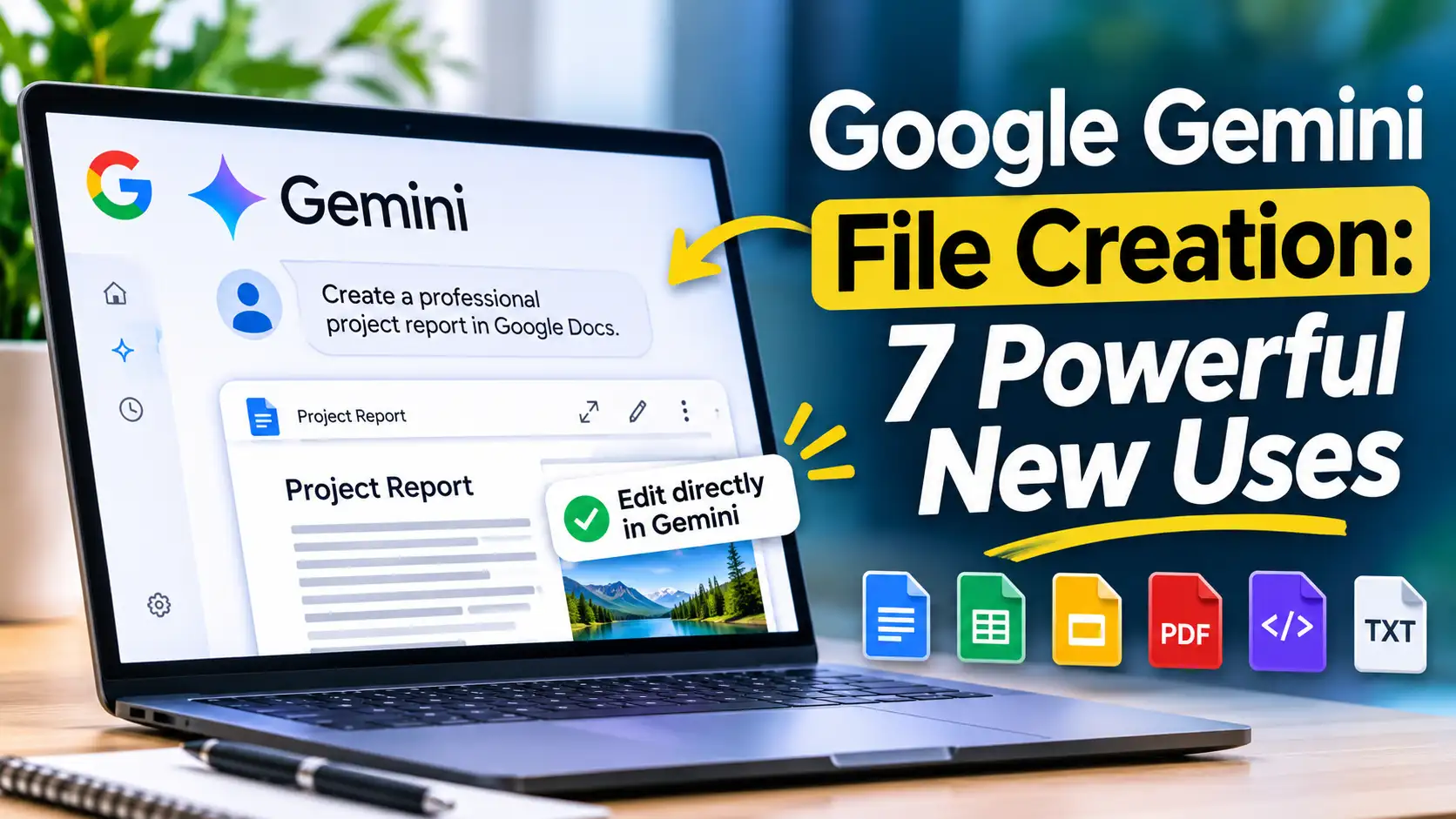
Google Gemini File Creation: 7 Powerful New Uses
Google Gemini is becoming more than a chatbot for answering questions. With its latest file creation and editing update, Google now lets you generate, preview and modify documents, PDFs, presentations, spreadsheets and code directly inside a Gemini conversation.
Announced on October 29, 2026, this update makes it easier to turn an ordinary text prompt into a usable file without constantly switching between different applications. You can also open generated files in a full-screen editor, make manual changes, highlight specific sections and ask Gemini to improve them.
For students, professionals, business owners and content creators, Google Gemini file creation could make everyday tasks easier. However, there are some important differences between desktop and mobile support that you should understand before using it.
What Is Google's New Gemini File Creation Feature?
Google’s new Gemini file creation feature allows users to generate, preview and edit different types of files directly within the Gemini app.
Previously, users could already ask Gemini to create downloadable documents and spreadsheets. Google introduced that capability on April 29, 2026. The October 29 update builds on it by adding a more interactive preview and editing experience inside conversations.
Instead of generating content, downloading it and opening another application for every small correction, you can now make changes within Gemini itself.
The new experience supports several file categories:
Documents: Google Docs and other supported document formats.
Spreadsheets: Google Sheets and structured spreadsheet content.
Presentations: Slide decks that you can refine before opening in Google Slides.
PDFs: Generate, preview and edit PDF documents.
Text files: Markdown and plain-text files.
Code: Generate and refine supported code files.
Google also allows users to expand generated files into a full-screen editing experience. You can manually change content or select particular sections and ask Gemini to revise them.
This is particularly useful when you want to create something practical rather than simply receive an answer in a chat window.
7 Powerful Things You Can Do With Google Gemini File Creation
The new update introduces several practical possibilities for people who regularly work with digital documents. Here are seven useful ways to take advantage of it.
1. Create Professional Documents With Google Gemini
You no longer need to start every document with a blank page.
You can describe what you want, provide the necessary information and ask Gemini to organize everything into a structured document.
For example, you can create:
Business proposals
Project reports
Meeting summaries
Research documents
Professional letters
Study notes
Business plans
Suppose you are starting a small business and need a proposal for a potential client. Instead of manually organizing every section, you can give Gemini your business details, objectives, services and pricing information.
It can turn those instructions into a structured document that you can review and refine.
Example prompt:
“Create a professional business proposal for a website development service. Include an executive summary, project objectives, services, pricing structure, delivery timeline and conclusion. Organize everything into a clean Google Docs document.”
You can then review the generated document and request improvements to individual sections.
2. Build Spreadsheets Without Creating Tables Manually
Spreadsheets are useful for managing expenses, tracking projects and organizing business information. However, creating formulas, tables and layouts manually can take time.
Gemini can help generate structured Google Sheets from ordinary instructions.
For example, you can request:
Monthly expense trackers
Business revenue spreadsheets
Student performance records
Project management trackers
Inventory management tables
Personal budgeting sheets
You can also describe the columns and information you want to include.
Example prompt:
“Create a monthly expense tracker in Google Sheets with columns for date, expense category, description, payment method and amount. Include a monthly total and organize the spreadsheet for easy tracking.”
Gemini can generate the spreadsheet, show you a preview and allow you to open it directly in Google Sheets.
However, always check generated formulas and calculations before relying on a spreadsheet for financial decisions.
3. Generate Presentations and Slide Decks
Creating presentations involves more than writing information. You also need to organize ideas, structure slides and present information clearly.
Gemini can help create presentation outlines and slide content, preview the layout and refine the tone or structure.
For example, students can prepare educational presentations, while businesses can organize proposals, product explanations and project updates.
Example prompt:
“Create a 10-slide presentation about artificial intelligence in modern businesses. Include an introduction, major applications, benefits, challenges, real-world examples and conclusion. Keep the language professional and make each slide easy to understand.”
After generating the presentation, you can review it and request changes before opening it in Google Slides.
Google also allows supported slide decks to be downloaded as PowerPoint or PDF files.
This makes the feature useful for people who need to prepare presentations without building every slide from scratch.
4. Turn Handwritten Notes Into PDF Study Guides
One of the most interesting examples in Google’s announcement involves converting uploaded handwritten lecture notes into a PDF study guide.
This could be especially useful for students who have large collections of handwritten notes and want to organize them digitally.
You can upload your notes and ask Gemini to:
Organize information into topics.
Create clear headings and subheadings.
Summarize important concepts.
Improve the structure of explanations.
Prepare a study guide.
Create a PDF that you can review and edit.
Example prompt:
“Turn these uploaded lecture notes into a structured PDF study guide. Organize the material into chapters, explain difficult concepts in simple English and highlight the most important points. Keep the information accurate and do not remove essential details.”
After generating the PDF, you can preview it, make manual changes and highlight sections for further editing.
Remember that handwritten text recognition and AI-generated explanations can contain mistakes. Always compare important information with your original notes.
5. Create and Refine Code Files
Gemini’s new file editing experience also includes code files.
This gives developers and learners another way to work with code directly inside an AI conversation.
You can use prompts to generate or refine supported code files, organize existing code and request explanations of particular sections.
For example, someone learning web development might ask Gemini to prepare a basic HTML file or improve a particular section of an existing project.
Example prompt:
“Create a basic HTML landing page for a technology blog. Include a navigation bar, hero section, featured articles and footer. Use clean, readable code and organize the file properly.”
You can then ask Gemini to refine specific sections.
However, generating a code file is not the same as deploying a working website. You should test the code in the appropriate development environment before using it in a live project.
6. Edit Specific Sections Without Recreating the Entire File
This is one of the most important improvements in the October update.
Sometimes an AI-generated document is already useful, but one paragraph, heading or section needs improvement.
Previously, you might have needed to explain the requested changes again and generate another version.
Now, Gemini allows you to interact with the file preview, highlight specific text and request modifications.
For example, you can select a paragraph and ask:
“Rewrite this paragraph in simple English while keeping its original meaning. Make it more professional and remove unnecessary words.”
You can also make manual changes by expanding the file into the full-screen editor.
This gives users more control over the final document and reduces unnecessary regeneration.
7. Move Between Gemini and Google Workspace
Another useful part of this update is its connection with Google’s productivity ecosystem.
You can generate structured files in Gemini and continue working with them in compatible Google Workspace applications.
For example:
Open generated Google Docs in Google Docs.
Open generated spreadsheets in Google Sheets.
Continue refining slide decks in Google Slides.
Upload supported files to Google Drive.
Download supported presentation files as PPTX or PDF.
This makes Gemini useful as a starting point for creating digital content.
You can use the chatbot to organize your ideas and then continue working in the application that best fits your requirements.
How to Create Files in Google Gemini: Step-by-Step Guide
Using the new feature does not require advanced technical knowledge. You mainly need a Google account and access to the Gemini app.
Follow these steps to create your first file.
Step 1: Open Google Gemini
Visit Google Gemini using your desktop browser.
Sign in with your Google account if you have not already done so.
Step 2: Describe the File You Want
Write a clear prompt explaining what you want Gemini to create.
For example, you can request a PDF report, Google Docs document, spreadsheet or presentation.
Be specific about the format, structure, content and purpose.
Step 3: Generate Your File
Submit your prompt and allow Gemini to prepare the requested file.
The generated result should appear within your conversation, where you can review the available preview.
Step 4: Preview and Review the Content
Before making further changes, check the generated file.
Look for missing information, incorrect calculations, formatting problems and unnecessary content.
Do not assume that an AI-generated file is automatically accurate.
Step 5: Edit Your File
Expand the file into the full-screen editing experience.
You can make manual changes or highlight particular sections and ask Gemini to revise them.
For example, you can request a simpler explanation, a more professional tone or a clearer presentation of information.
Step 6: Open or Export Your File
Depending on the file type, you can open it in a compatible Google Workspace application, download it or upload it to Google Drive.
Your finished file is then ready for further editing, sharing or use.
Which File Formats Does Google Gemini Support?
Google’s file capabilities have expanded over multiple updates. It is important to distinguish between formats Gemini can generate and formats supported by the newer in-chat preview and editing experience.
The following table summarizes Google’s announced capabilities.
| File format | Generate files | New preview and editing |
|---|---|---|
| Google Docs | Yes | Web |
| Google Sheets | Yes | Web |
| Slide decks | Yes | Web |
| Yes | Web and mobile | |
| DOCX | Yes | Not separately listed |
| XLSX | Yes | Not separately listed |
| CSV | Yes | Not separately listed |
| Markdown | Yes | Web |
| TXT | Yes | Web |
| RTF | Yes | Not separately listed |
| LaTeX | Yes | Not separately listed |
| Code files | Yes | Web |
The distinction matters because the October announcement specifically describes the new editing experience for Google Docs, Google Sheets, slide decks, Markdown, TXT, code and PDFs.
Google’s April 2026 announcement had already introduced downloadable file generation, including DOCX, XLSX, CSV, RTF and LaTeX.
Therefore, do not assume that every format supported for generation automatically has the same in-chat editing capabilities.
Is Google Gemini File Creation Free?
One of the most common questions about new AI features is whether users need a paid subscription.
Google’s October 29 announcement states that the new capabilities are available to all users in countries and languages where the Gemini app is available.
Google also identifies personal Google accounts, Google Workspace customers and Workspace Individual subscribers among the supported users.
However, there is an important distinction between feature availability and unlimited usage.
Google has not announced a separate price for this particular file editing feature. Normal Gemini usage limits and account restrictions may still apply.
If you are using Gemini for personal work, you can try the feature through the official Gemini website.
You should check the current Gemini plan details if you need higher usage limits or additional capabilities.
Google Gemini vs ChatGPT: Which Is Better for Creating Files?
Google Gemini and ChatGPT both provide AI-assisted workflows for generating and working with digital content.
However, the best option depends on what you want to create and which applications you already use.
| Feature | Google Gemini | ChatGPT |
|---|---|---|
| Document creation | Supported | Supported |
| Spreadsheet creation | Supported | Supported |
| PDF generation | Supported | Supported |
| AI-assisted editing | Supported | Supported through available tools |
| Google Workspace workflow | Direct integration with compatible Google files | Depends on available integrations |
| File downloads | Supported formats | Depends on the workflow and available tools |
Why should you choose Gemini?
Gemini is a practical option if you already use Google Docs,Sheets,Slides and Drive.Its new in-chat editing experience can reduce the number of steps between generating a file and refining it.
Why should you choose ChatGPT?
ChatGPT is worth considering if you want to combine document creation with broader research,analysis,coding and other available toold.
Neither platform is automatically been for everu task.This quality of the output,available features and your preferred workflow should determine your choice.
Limitations You Should Know Before Using Gemini
Although the new feature makes file creation more convenient, it does not remove every limitation of AI-generated content.
Here are some important points to consider.
1. Mobile support is limited
PDF preview and editing are supported on both web and mobile. The other newly announced formats, including Google Docs, Sheets, slide decks, Markdown, TXT and code, are supported on the web only.
2. AI-generated information needs verification
Gemini can make mistakes in explanations, summaries, formulas and other generated content. Review important information before sharing or using it.
3. Formatting may need manual adjustments
A generated document might not match your exact design expectations. You may still need to refine headings, spacing, tables and other formatting elements.
4. File generation is different from professional editing
Creating a spreadsheet does not guarantee that every formula is correct. Similarly, generating a presentation does not guarantee that every slide has an effective visual design.
5. Usage restrictions can still apply
Availability to all eligible users does not mean unlimited access. Your account and the applicable Gemini usage limits may affect how much you can do.
Frequently Asked Questions
Can Google Gemini create PDF files?
Yes. Gemini can generate PDF files from text prompts and uploaded information. The October 2026 update also adds PDF preview and editing on both desktop and mobile.
Can Gemini create Excel spreadsheets?
Yes. Gemini introduced downloadable Excel XLSX generation in April 2026. It can also generate structured Google Sheets that users can preview and open in Google Sheets.
Can I edit Google Docs directly in Gemini?
Yes. Google’s October 29, 2026 update supports previewing and editing Google Docs directly within Gemini on the web.
Is Gemini file creation available on mobile?
Yes, but with limitations. The new PDF preview and editing experience is supported on mobile. Other formats covered by the October update are currently supported on the web.
Can Gemini convert handwritten notes into a PDF?
Yes. Google demonstrated creating a PDF study guide from uploaded handwritten lecture notes. Users can then preview and edit the generated document.
Do I need a Google Workspace subscription to create files in Gemini?
No separate Workspace subscription is required for the announced feature. Google says it is available to users with personal Google accounts as well as Workspace customers and Workspace Individual subscribers, wherever Gemini is available.
When did Google introduce Gemini's new file editing feature?
Google announced the new in-chat file preview and editing capabilities on October 29, 2026. The earlier file-generation capability was announced on April 29, 2026.
Final Verdict: Is Google's New Gemini File Feature Worth Using?
Google’s October 2026 update makes Gemini more useful for everyday productivity. Instead of limiting conversations to questions and answers, users can now generate, preview and refine documents, PDFs, spreadsheets, presentations and code within the same workflow.
The biggest improvement is the ability to edit generated files directly rather than repeatedly downloading them and switching between applications.
For students, professionals, business owners and content creators, this can save time when preparing reports, organizing information and creating digital documents.
However, AI-generated content still requires human review. You should check calculations, verify important information and make final formatting adjustments before sharing your work.
Overall, Google’s new file creation and editing experience is a useful step towards making Gemini a more practical productivity tool, not just another AI chatbot.